> ## Documentation Index
> Fetch the complete documentation index at: https://factory-docs-model-update-cl-733.mintlify.site/llms.txt
> Use this file to discover all available pages before exploring further.
# Incident Response
> Set up Droid to respond to production alerts in Slack and resolve or investigate incidents autonomously.
Incident Response is in private preview. To request access, fill out the form at [factory.ai/contact](https://factory.ai/contact) or contact your Factory account team.
## Overview
When an alert lands in a configured Slack channel, an Incident Response automation automatically starts a linked Droid session so Droid can investigate the incident with the right context, machine, and instructions.
Droid can work toward an RCA, open a PR for a fix when appropriate, and update an incident runbook so future investigations of the same alert type start faster.
## Quickstart: set up from the Factory App
Incident Response is set up as an [automation](/web/automations) in the Factory App.
In Slack, open the channel where alert bots post incidents and run:
```text theme={null}
/invite @Factory
```
If you have not connected Slack yet, set up the [Slack integration](/integrations/slack) first. Only channels where Factory has been invited appear in the channel picker.
In the Factory App, open [**All Automations**](https://app.factory.ai/automations) under **Software Factory** in the sidebar and click **New automation**.
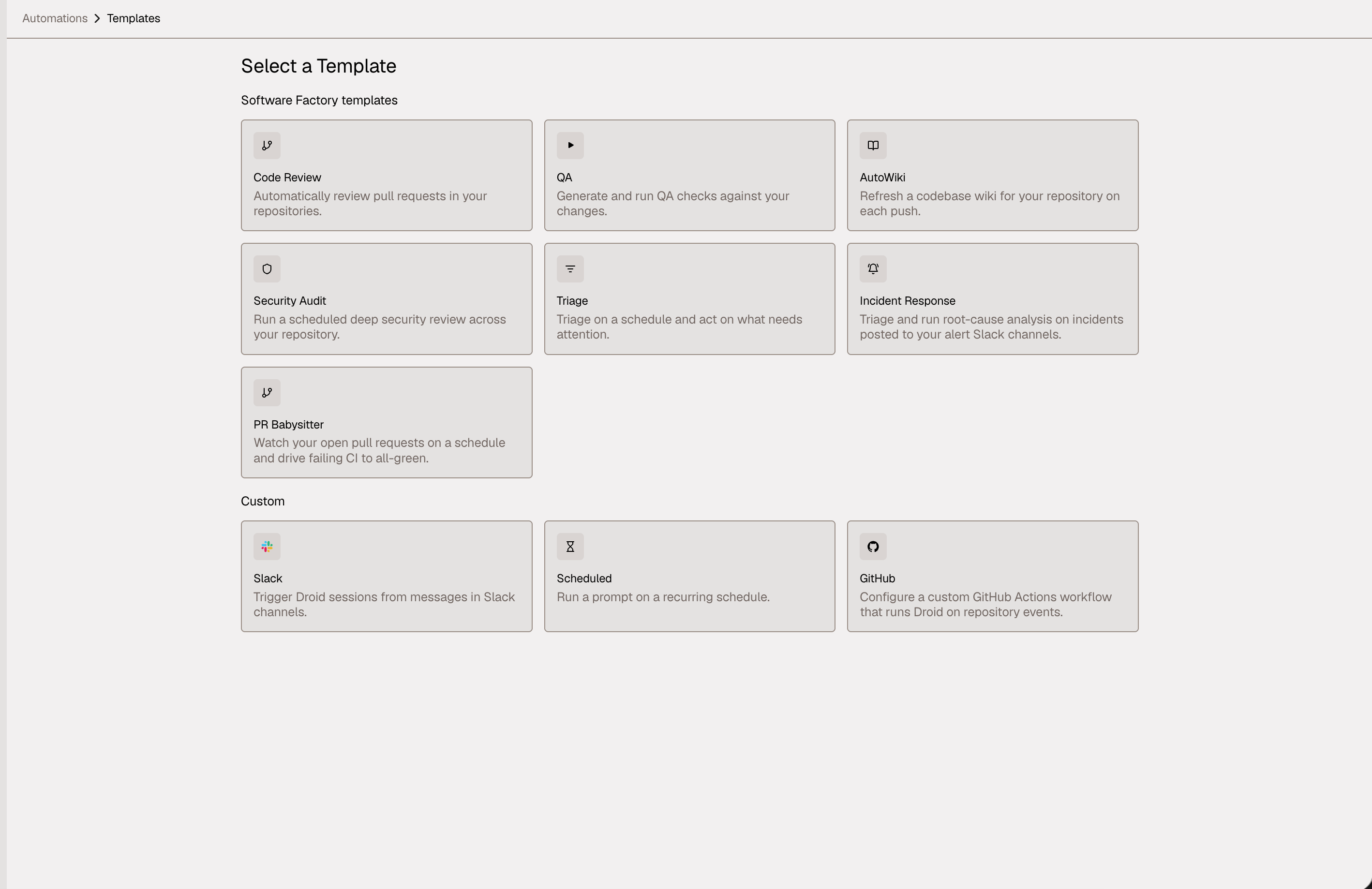
From the template gallery, select the **Incident Response** template under Software Factory templates.
 Give the automation a name, then under **Triggers**, search for and select the incident channel. **Trigger on messages from** defaults to **Bots only**, which matches alert bots posting incidents; change it only if humans should also trigger investigations.
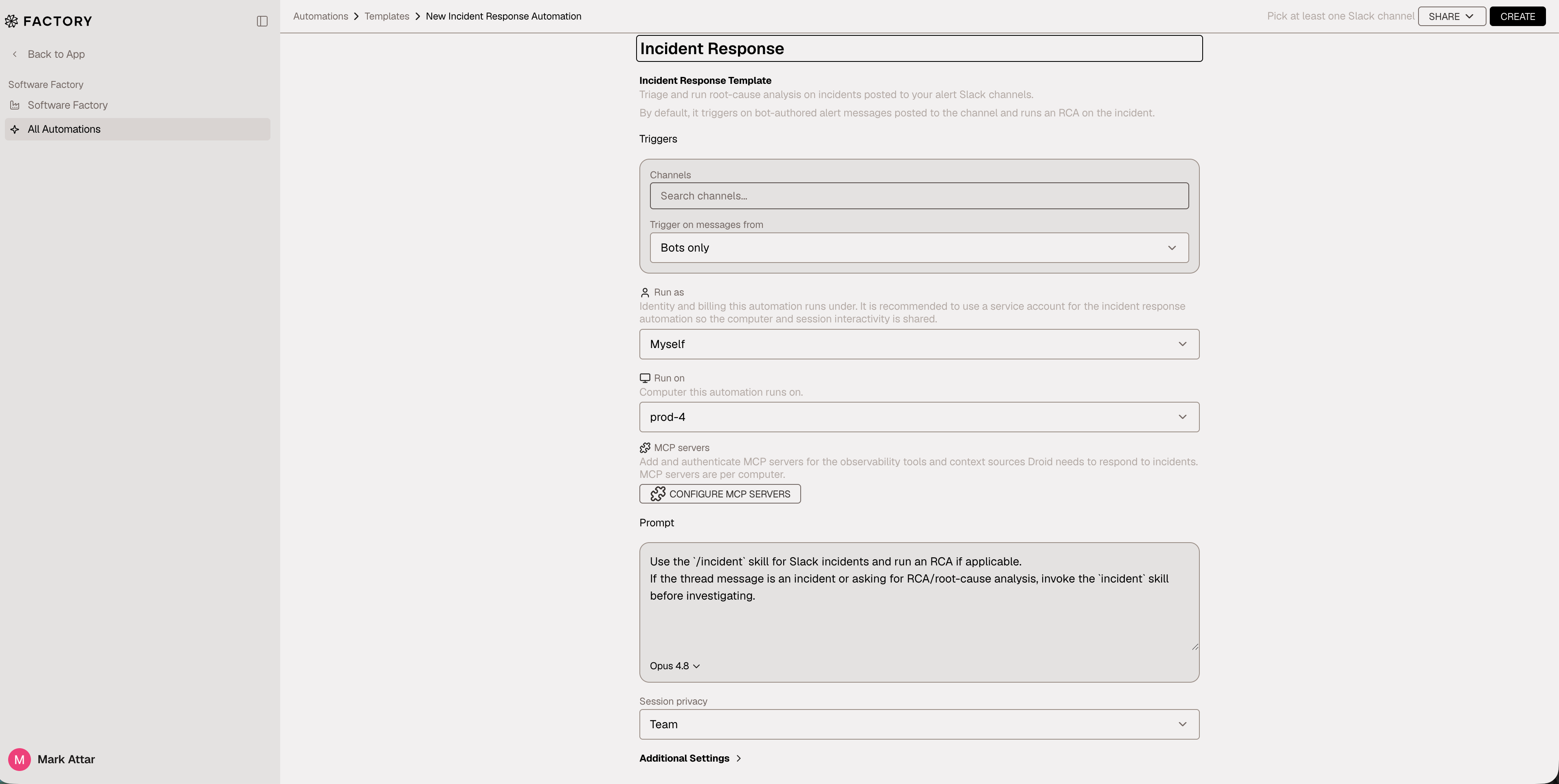 * **Run as** sets the identity and billing the automation runs under. A [service account](/enterprise/service-accounts) is recommended for incident response so the computer and session interactivity are shared across the team.
* **Run on** sets the computer where Droid investigates. Pick the computer with the right repositories, observability tools, and anything else you want to add that can help the agent. Learn more about Droid Computers [here](/cli/features/droid-computers).
Use **Configure MCP Servers** to add and authenticate the observability tools and context sources Droid needs to respond to incidents. MCP servers are configured per computer and **require connection to the computer to set up**; if you have issues, retry a few times or change the computer.
The template pre-fills a prompt that is injected into every session triggered from the channel:
```text theme={null}
Use the `/incident` skill for Slack incidents and run an RCA if applicable.
If the thread message is an incident or asking for RCA/root-cause analysis, invoke the `incident` skill before investigating.
```
Keep the default or add channel-specific instructions, and optionally select a model.
Choose whether triggered sessions are visible to your **Team** or **Private**, review any **Additional Settings**, then click **Create**.
Post a test top-level alert from the same kind of bot that will send real incidents. Confirm the automation starts a Droid session and links it from the Slack thread. You can review runs from the automation's detail view.
## Configuration details
### Customizing the prompt
The automation prompt is injected into every session triggered from the channel. Keep it specific to incident work:
* Tell Droid to run RCA and use the `/incident` workflow when appropriate.
* Mention the primary services or repositories for that channel.
* Point Droid at runbooks, dashboards, or common alert sources.
* State escalation expectations, such as when to summarize uncertainty instead of taking action.
Avoid prompts that make the automation a general-purpose Slack surface. Incident Response works best when the prompt is narrow and operational. For broader Slack workflows, create a separate [Slack automation](/web/automations) instead.
### Channel selection and trigger source
Incident Response is designed for channels where incident alerts arrive as top-level messages. Thread replies are not used to start new sessions, which prevents ordinary discussion from repeatedly launching Droids.
For best results, use a dedicated channel such as `#incidents`, `#alerts-production`, or a service-specific incident channel.
The channel picker only shows channels where Factory has been invited. **Trigger on messages from** defaults to **Bots only** so ordinary messages in the channel do not trigger investigations; widen it only if humans should also be able to start incident sessions.
### Session privacy and model
**Session privacy** controls who can see triggered sessions. **Private** sessions are visible to the run identity. **Team** sessions can be reviewed by other members, which is useful for incident handoff and postmortem review.
Use the default model unless your team has a known preference for incident analysis. For complex production incidents, choose a stronger reasoning model if available.
### Managing the automation
Open the automation from [**All Automations**](https://app.factory.ai/automations) to see recent runs and statuses. Depending on your permissions, you can run now, pause, resume, share, fork, rename, edit, or delete the automation. Pause the automation instead of deleting it when you want to temporarily stop incident sessions.
## How the incident flow works
Once configured, Incident Response follows this flow:
1. An alert bot posts a top-level message in the configured Slack channel.
2. The automation starts a Droid session using its run identity, computer, session privacy, model, and prompt.
3. Droid receives the Slack alert context and checks for any matching `incident-guidelines` runbook guidance.
4. Droid investigates with the configured tools and should invoke the `/incident` workflow when RCA is appropriate.
5. Factory posts status and session links back into Slack, and Droid can save reusable learnings for similar incidents.
The `incident-guidelines` runbook is stored locally at `.factory/skills/incident-guidelines/SKILL.md` for team reuse or `~/.factory/skills/incident-guidelines/SKILL.md` for personal reuse. It should store reusable investigation guidance, not secrets or one-off RCA details.
## Troubleshooting
Invite Factory to the channel with `/invite @Factory`, then search for the channel again in the automation's trigger settings. Private channels must invite Factory explicitly.
Make sure the automation has a selected **Run on** computer. If **Run as** is set to a service account, that service account must be active and own at least one computer.
Confirm the message is a top-level alert in the configured channel, not a thread reply, and that the sender matches the **Trigger on messages from** setting. Also check that the automation is not paused.
Check that the selected computer has the right repository, tooling, and credentials. Update the automation prompt with links to runbooks or dashboards Droid should use first.
Add more channel-specific context to the prompt: service names, alert sources, dashboard links, log query examples, repository paths, and expected RCA format.
## See also
* [Automations](/web/automations) -- Create and manage automations across your software delivery lifecycle.
* [Slack integration](/integrations/slack) -- Connect Factory to Slack and invite Factory to channels.
* [Autonomy Level](/cli/user-guides/auto-run) -- Understand how Droid runs work without repeated approvals.
* [Droid Computers](/cli/features/droid-computers) -- Configure persistent environments for investigations.
* [Skills](/cli/configuration/skills) -- Learn how reusable workflows like incident investigation guide Droid.
* **Run as** sets the identity and billing the automation runs under. A [service account](/enterprise/service-accounts) is recommended for incident response so the computer and session interactivity are shared across the team.
* **Run on** sets the computer where Droid investigates. Pick the computer with the right repositories, observability tools, and anything else you want to add that can help the agent. Learn more about Droid Computers [here](/cli/features/droid-computers).
Use **Configure MCP Servers** to add and authenticate the observability tools and context sources Droid needs to respond to incidents. MCP servers are configured per computer and **require connection to the computer to set up**; if you have issues, retry a few times or change the computer.
The template pre-fills a prompt that is injected into every session triggered from the channel:
```text theme={null}
Use the `/incident` skill for Slack incidents and run an RCA if applicable.
If the thread message is an incident or asking for RCA/root-cause analysis, invoke the `incident` skill before investigating.
```
Keep the default or add channel-specific instructions, and optionally select a model.
Choose whether triggered sessions are visible to your **Team** or **Private**, review any **Additional Settings**, then click **Create**.
Post a test top-level alert from the same kind of bot that will send real incidents. Confirm the automation starts a Droid session and links it from the Slack thread. You can review runs from the automation's detail view.
## Configuration details
### Customizing the prompt
The automation prompt is injected into every session triggered from the channel. Keep it specific to incident work:
* Tell Droid to run RCA and use the `/incident` workflow when appropriate.
* Mention the primary services or repositories for that channel.
* Point Droid at runbooks, dashboards, or common alert sources.
* State escalation expectations, such as when to summarize uncertainty instead of taking action.
Avoid prompts that make the automation a general-purpose Slack surface. Incident Response works best when the prompt is narrow and operational. For broader Slack workflows, create a separate [Slack automation](/web/automations) instead.
### Channel selection and trigger source
Incident Response is designed for channels where incident alerts arrive as top-level messages. Thread replies are not used to start new sessions, which prevents ordinary discussion from repeatedly launching Droids.
For best results, use a dedicated channel such as `#incidents`, `#alerts-production`, or a service-specific incident channel.
The channel picker only shows channels where Factory has been invited. **Trigger on messages from** defaults to **Bots only** so ordinary messages in the channel do not trigger investigations; widen it only if humans should also be able to start incident sessions.
### Session privacy and model
**Session privacy** controls who can see triggered sessions. **Private** sessions are visible to the run identity. **Team** sessions can be reviewed by other members, which is useful for incident handoff and postmortem review.
Use the default model unless your team has a known preference for incident analysis. For complex production incidents, choose a stronger reasoning model if available.
### Managing the automation
Open the automation from [**All Automations**](https://app.factory.ai/automations) to see recent runs and statuses. Depending on your permissions, you can run now, pause, resume, share, fork, rename, edit, or delete the automation. Pause the automation instead of deleting it when you want to temporarily stop incident sessions.
## How the incident flow works
Once configured, Incident Response follows this flow:
1. An alert bot posts a top-level message in the configured Slack channel.
2. The automation starts a Droid session using its run identity, computer, session privacy, model, and prompt.
3. Droid receives the Slack alert context and checks for any matching `incident-guidelines` runbook guidance.
4. Droid investigates with the configured tools and should invoke the `/incident` workflow when RCA is appropriate.
5. Factory posts status and session links back into Slack, and Droid can save reusable learnings for similar incidents.
The `incident-guidelines` runbook is stored locally at `.factory/skills/incident-guidelines/SKILL.md` for team reuse or `~/.factory/skills/incident-guidelines/SKILL.md` for personal reuse. It should store reusable investigation guidance, not secrets or one-off RCA details.
## Troubleshooting
Invite Factory to the channel with `/invite @Factory`, then search for the channel again in the automation's trigger settings. Private channels must invite Factory explicitly.
Make sure the automation has a selected **Run on** computer. If **Run as** is set to a service account, that service account must be active and own at least one computer.
Confirm the message is a top-level alert in the configured channel, not a thread reply, and that the sender matches the **Trigger on messages from** setting. Also check that the automation is not paused.
Check that the selected computer has the right repository, tooling, and credentials. Update the automation prompt with links to runbooks or dashboards Droid should use first.
Add more channel-specific context to the prompt: service names, alert sources, dashboard links, log query examples, repository paths, and expected RCA format.
## See also
* [Automations](/web/automations) -- Create and manage automations across your software delivery lifecycle.
* [Slack integration](/integrations/slack) -- Connect Factory to Slack and invite Factory to channels.
* [Autonomy Level](/cli/user-guides/auto-run) -- Understand how Droid runs work without repeated approvals.
* [Droid Computers](/cli/features/droid-computers) -- Configure persistent environments for investigations.
* [Skills](/cli/configuration/skills) -- Learn how reusable workflows like incident investigation guide Droid.